Someone looks too old or too young
Someone looks too old or too young in a picture. How do I change their age?
Each person has an age on every page, and sometimes a picture gets it wrong: someone in their middle years painted much too old, or someone painted too young late in life. You can change the age on one page. Their face and head are painted again at the new age. Their body, their clothes and the rest of the picture stay as they are. This uses one of your free fixes.
Typing “younger” or “older” into a text box does not change the age. Use “Wrong age” instead.
Under “Which …?” you can also choose which portrait to start from: “As a child”, “As a young adult” or “As they are now”. For a page from their younger or middle years, start from “As a young adult”. For a page from their later years, start from “As they are now”. Not everyone has all three portraits.
In a How We Met book the ages on each page come from the year of that moment. If both of you look the wrong age on the same page, fix both in one go: set up the first person, tap or click “+ Add another fix to this repaint”, then paint over the second.
The covers work the same way. If hair, glasses or clothes on a cover do not match the inside pages, choose “Something else…” instead of “Wrong age” and write what is right, for example “no glasses” or “short grey hair”.
If you liked an earlier picture better, the small arrows on the picture take you back to it for free.
Steps
- Go to the page and tap or click “Edit this page!” in the top right corner of the picture. Paint over the person's head.
- Tap or click “Characters”, then “Fix this person”, then the person.
- If you like, tap or click the portrait under “Which …?” that is closest to the age you want.
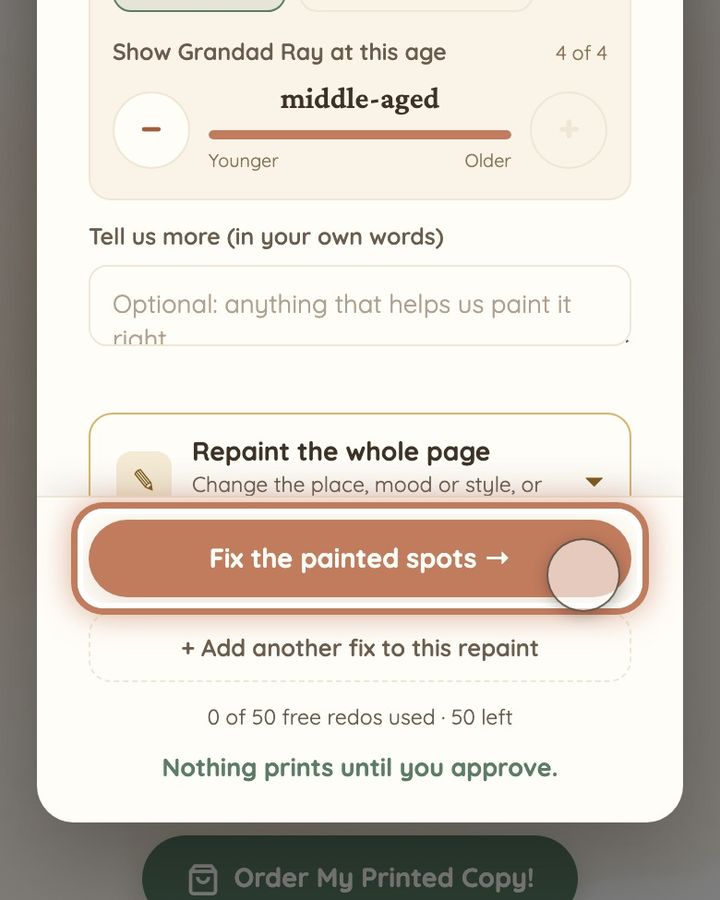
- Tap or click “Wrong age”. Then tap or click − to make them younger or + to make them older, until the age shown is right. “as painted” marks the age that is painted now.
- Tap or click “Fix the painted spots →” at the bottom of the window. The new picture appears by itself.
Short video: Make someone younger or older
13 seconds · no sound
- In the edit window, paint over their head.
- Tap or click “Characters”, then “Fix this person”, then the person.
- Tap or click “Wrong age”.
- Tap or click − (younger) or + (older) until the age is right. “as painted” marks the age shown now.
- Tap or click “Fix the painted spots →”.
This uses 1 of your image fixes. It costs no money.
Short video: Change hair, clothes or glasses on one person
13 seconds · no sound
- Paint over the person.
- Tap or click “Characters”, then “Fix this person”, then the person.
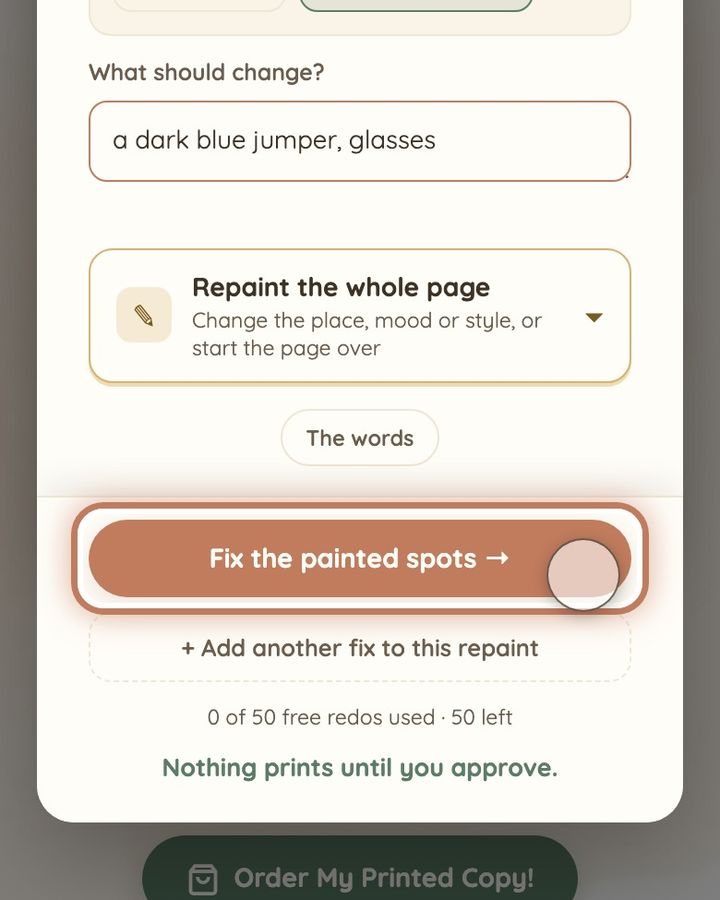
- Tap or click “Something else…”.
- Write what should change, for example “a dark blue jumper, glasses”.
- Tap or click “Fix the painted spots →”. The person stays the same, only that detail changes.
This uses 1 of your image fixes. It costs no money.
If the age still looks wrong, first go back to the earlier picture with the small arrows on the picture. Going back is free. Then try again: start from the portrait under “Which …?” that is closest to the age, and go one step further with − or +. If people look the wrong age all through your book, look at their portraits under “Which …?”. If a portrait itself is the wrong age, and an age fix on the worst page still looks wrong, use the link “Something seriously wrong that page fixes can't solve?” at the top of your book, under its title. Do the same if there is no “Wrong age” for the person and they have only one portrait. Tell us who it is, which pages, and how old they should be there. Or write to us at hello@memolio.io.
Still stuck? Write to us at hello@memolio.io and tell us what you were trying to do.