Someone is missing, extra or the wrong person
Someone is missing from a picture, someone is there who shouldn't be, or it's the wrong person. What can I do?
All of these start the same way: on the page, tap or click “Edit this page!” and paint over the spot. Adding, taking out or swapping a person paints the whole picture again, so small details can change. If you liked the picture before better, the small arrows on the picture take you back to it for free.
Someone is missing. Paint an empty spot where they should stand, from head to feet and about their size. Then choose “Characters” and open “Someone new here”. Tap or click the person and the age you want. This uses one of your free fixes. Not in the list? Tap or click “Upload a new person” to add them with a photo, or “Describe a new person” to describe them in a few words.
Someone should not be there. Paint over the whole person. Choose “Remove this”, then “A person”, and tap or click them under “Who should we remove?”. If they are not in the list, describe them in the text box below instead, for example “the tall man in a hat at the back”.
Someone is there twice. Paint over only the extra copy. Choose “Remove this”, keep “An object” selected, and write which one should go, for example “the second girl, on the right”. Do not pick the person's name for this, because that can take out both.
The wrong person is standing in a spot. If the right person is already in the picture and only looks wrong, fix their face instead. Otherwise paint over the wrong person, choose “Characters” and open “This should be a different person”. Tap or click who should be there instead. A swap uses more than one of your free fixes, and the window says how many before you send it. For someone who is not in your book yet, tap or click “Describe a new person” and describe them in a few words.
A stranger who should stay, but look different. Paint over them, choose “Characters”, open “Fix this person” and tap or click “Someone else in the image”. Describe them under “Describe who this person is”, for example “a boy of about ten with short brown hair”.
People who are only described in words, without a photo, look a little different on every page.
In a How We Met book, the people and pets you told us about appear on the pages whose moment mentions them. You can add a person to any page as above. A pet cannot be added that way: open “Repaint the whole page”, choose “Design this page myself”, and under “Who's in the picture?” tap or click the two of you and your pet. A pet without a photo is not in that list: describe it under “Anything else?” instead. Then tap or click “Add to this page’s fixes” and “Redo this page”. This paints the whole page again.
Steps
- Go to the page and tap or click “Edit this page!” in the top right corner of the picture.
- Paint the spot: an empty space for someone new, or over the whole person who should go or be swapped.
- To add or swap, tap or click “Characters” and open “Someone new here” or “This should be a different person”. To take someone out, tap or click “Remove this”, then “A person”.
- Tap or click the person. When you add someone, also tap or click the age you want.
- Tap or click the wide button at the bottom of the window. It says “Repaint this page →” or “Fix the painted spots →”, depending on the change. The new picture appears by itself.
Short video: Add someone who is missing
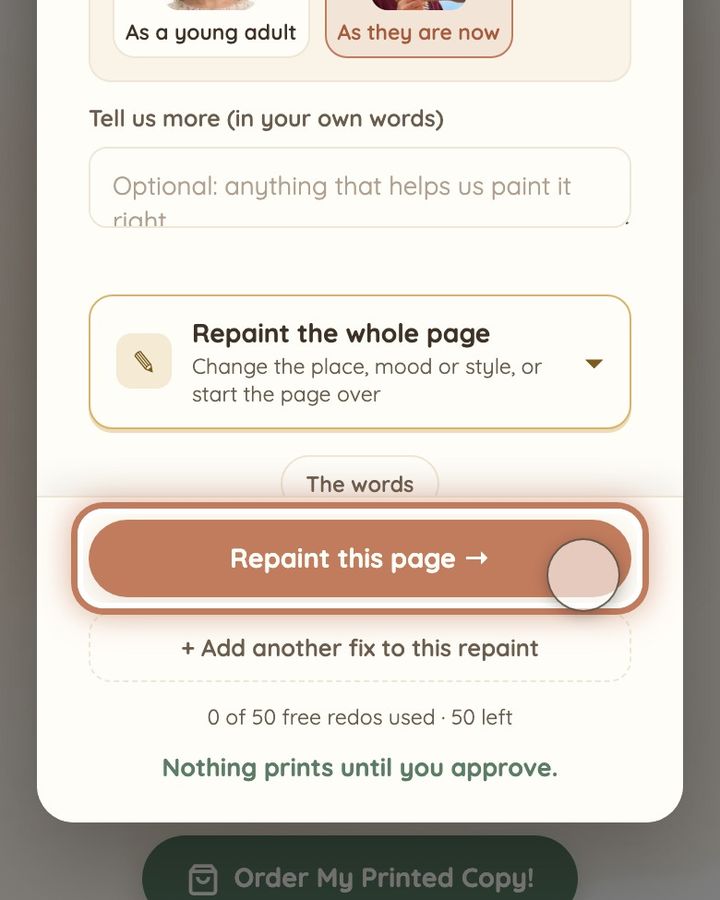
10 seconds · no sound
- Paint a tall empty spot where they should stand, head to feet.
- Tap or click “Characters”, then “Someone new here”.
- Tap or click the person, then the age you want.
- Tap or click “Repaint this page →”.
This uses 1 of your image fixes. It costs no money.
Short video: Take a person out
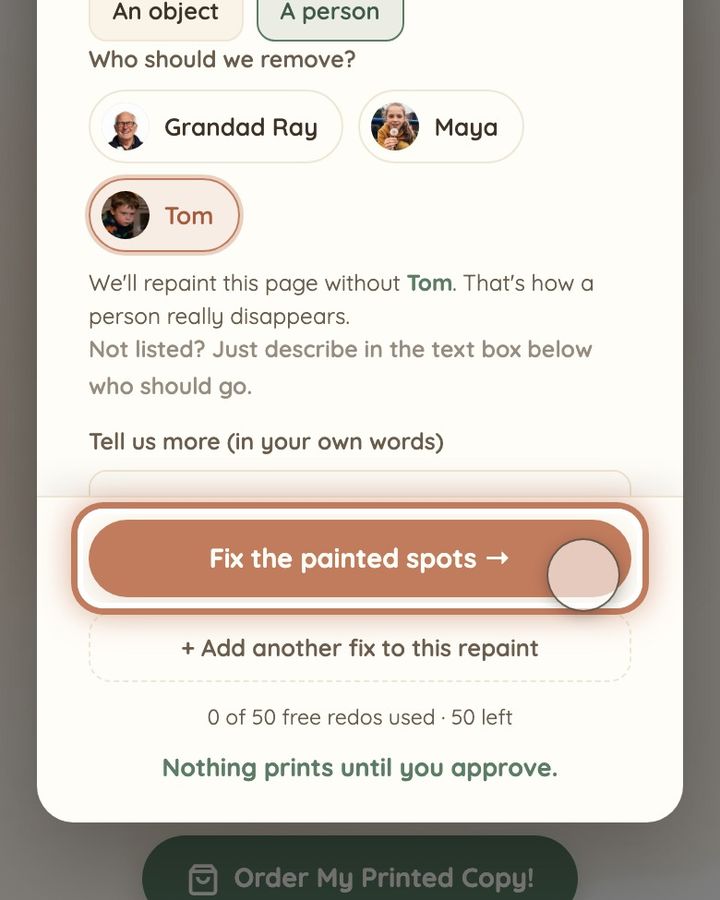
9 seconds · no sound
- Paint over the whole person.
- Tap or click “Remove this”, then “A person”.
- Under “Who should we remove?” tap or click them.
- Tap or click “Fix the painted spots →”. The page is painted again without them.
This uses 1 of your image fixes. It costs no money.
If a person keeps coming back, or the new picture is worse, the small arrows on the picture take you back to the earlier one for free. Then paint over the whole person again, from head to feet, and keep the paint off anyone next to them. If picking them under “Who should we remove?” did not work, choose “Remove this”, keep “An object” selected instead and describe them, for example “the tall man in a hat at the back”. If the same wrong person or a stranger is in the pictures all through your book, look at the portrait of the person who should be there. Paint over their face, tap or click “Characters”, then “Fix this person” and the person, and look at their portrait under “Which …?”. Page fixes copy that portrait. If the portrait itself is not them, and a face fix on the page where their face is clearest still does not look like them, use the link “Something seriously wrong that page fixes can't solve?” at the top of your book, under its title, and tell us who it is and which pages. Or write to us at hello@memolio.io.
Still stuck? Write to us at hello@memolio.io and tell us what you were trying to do.