Hands, objects and odd details
A hand, an object or a small detail in a picture looks wrong. How do I fix it?
AI painting sometimes gets hands wrong, adds something that does not belong, or paints an ordinary version of something special. You can fix just that spot. The rest of the picture stays as it is, and it uses one of your free fixes. Several spots on one page can go in the same repaint: after the first one, tap or click “+ Add another fix to this repaint”.
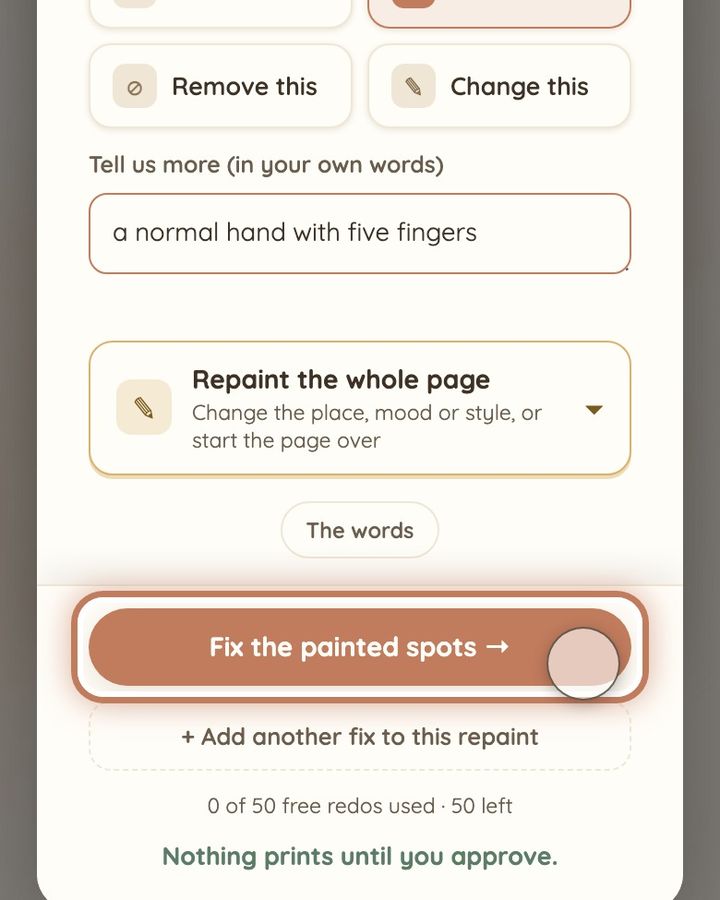
Hands, arms and legs. Paint over the hand or arm, not the face, and choose “Fix this”. You can add a short note, for example “a normal hand with five fingers” or “his hand rests on her shoulder”. An extra or floating hand is better taken out: choose “Remove this”, keep “An object” selected and write “remove the extra hand”.
Something odd or out of place. Paint over it, choose “Remove this”, keep “An object” selected and write what should go and what should be there instead, for example “remove the mirror lying on the sand, plain beach”. A painted fix works better here than “Just try again”, which often paints the same thing again.
An object that should be different. Paint over it and choose “Change this”. Under “What should it be changed to?”, describe it plainly: its shape, colour and size, not only its name. For example “a white jet with a pointed, drooping nose and triangle wings”, or “flat brown walking shoes”. To change who has something in their hands, paint over both people's hands in one go and write who should have it.
Write about things, not faces: for a face, use “Characters”. And describe people by how they look, not by their name, because a name can end up painted into the picture as writing.
Steps
- On the page, tap or click “Edit this page!” in the top right corner of the picture.
- Paint over the hand or the thing that looks wrong. Keep the paint off faces.
- Tap or click “Fix this” for a hand or arm, “Remove this” for something that should go, or “Change this” for something that should look different.
- Write a short note in the text box that appears, for example “a normal hand with five fingers”.
- Tap or click “Fix the painted spots →” at the bottom of the window. The new picture appears by itself.
Short video: Fix a hand or anything that looks broken
10 seconds · no sound
- Tap or click “Edit this page!”.
- Paint over the hand, or whatever looks broken. Never a face: faces go through “Characters”.
- Tap or click “Fix this”.
- Want to say more? Write it under “Tell us more (in your own words)”.
- Tap or click “Fix the painted spots →”.
This uses 1 of your image fixes. It costs no money.
If a hand is still wrong after a painted fix, go back to the earlier picture with the small arrows on the picture if it was better. Going back is free. Then you can describe the whole page yourself with a simpler pose: open “Repaint the whole page”, choose “Design this page myself” and write, for example, “holding hands, every hand visible”. This paints the whole page again and is not offered on the covers. If an object still looks wrong, paint a smaller spot over just that object, or try another kind of fix: “Remove this” to take it out, “Change this” to describe how it should look. If your free fixes are used up and the page is still wrong, write to us at hello@memolio.io with the page number.
Still stuck? Write to us at hello@memolio.io and tell us what you were trying to do.