Going back to an earlier picture
I liked an earlier picture better. Can I go back to it?
Yes. Every page and both covers keep their earlier pictures, and you can switch back at any time before you order. Going back is free and does not use up any of your fixes. Your choice is saved straight away, and the picture that shows on the page is the one that gets printed. The arrows only appear on a picture that has been repainted at least once. After you order, the arrows no longer change your printed book.
Steps
- Go to the page or the cover where you liked an earlier picture better. On a computer or tablet the book shows two pages side by side, so it may be the right-hand page.
- Find the small arrows ◀ and ▶ on the picture, with a counter such as “2 of 3” between them. They sit at the top or the bottom edge of the picture, depending on your screen.
- Tap or click ◀ to go back one picture at a time. Go slowly, so each picture has time to show.
- When the picture you like shows, wait until “Version switched.” appears. Then leave it there: that picture is saved and is the one that gets printed.
Short video: Go back to an earlier picture
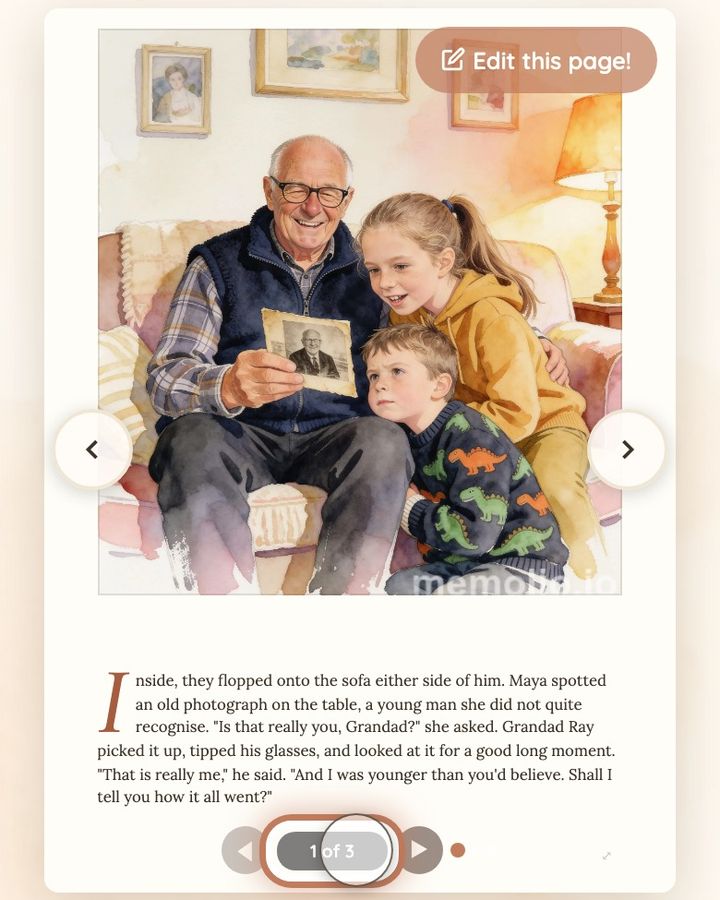
8 seconds · no sound
- Find the small arrows and the count, for example “2 of 4”.
- Tap or click ◀ or ▶ to look through every version of this page.
- The one you leave showing is the one we print. “Version switched.” confirms it.
This doesn't use any of your image fixes.
If the picture you want is not there, or your choice still does not save after you reload the page, write to us at hello@memolio.io and tell us the page number.
Still stuck? Write to us at hello@memolio.io and tell us what you were trying to do.