A face doesn't look like the person
A face in my book doesn't look like the person. How do I fix it?
Each page is painted on its own, so a face can come out wrong on one page even when the portrait you approved is right. The face fix paints that face again from the person's approved portrait. The rest of the picture stays as it is. It works the same way on the front and back cover.
Always fix a face through “Characters”, because then we know who the person is. With “Fix this” or “Change this” we do not know who it is, so a stranger can appear. Also leave the text box empty: if you type something there, the face is kept and only that detail changes.
If the fix changed the wrong person, or the new picture is worse, first go back to the earlier picture with the small arrows on the picture. Going back is free. Then paint again, this time only over the face you mean, and keep the paint off anyone standing close by.
Two faces wrong on one page? Set up the first one, then tap or click “+ Add another fix to this repaint” and paint the second face. It gets a new colour, and both are fixed together in one repaint, which uses just one of your free fixes.
On a cover, under “Which …?”, pick the portrait that matches the figure: “As a child”, “As a young adult” or “As they are now”. In a How We Met book the front cover shows the two of you when you met, so pick “As a young adult” there if you see it.
Steps
- Go to the page or cover with the face. Tap or click “Edit this page!” in the top right corner of the picture.
- Paint over the face, and only that face.
- Tap or click “Characters”, then “Fix this person”, then the person.
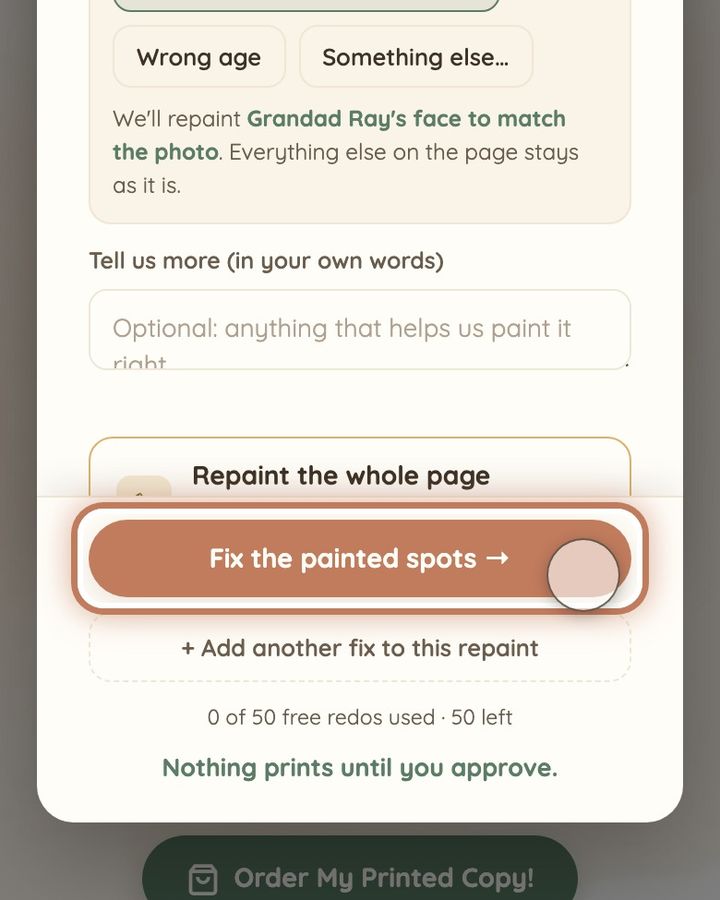
- Keep “Doesn't look like …” selected and leave the box “Tell us more (in your own words)” empty. Under “Which …?”, keep the portrait marked “currently used here”, unless you are fixing a cover.
- Check that the colour covers the face, then tap or click “Fix the painted spots →” at the bottom of the window. The new picture appears by itself.
Short video: Fix a face that doesn't look like them
12 seconds · no sound
- Tap or click “Edit this page!”.
- Paint over their face.
- Tap or click “Characters”, then “Fix this person”.
- Tap or click the person.
- Keep “Doesn't look like Grandad Ray”. Leave the text box empty.
- Check that the coloured patch covers the face, then tap or click “Fix the painted spots →”.
This uses 1 of your image fixes. It costs no money.
If the face is still wrong, or the fix changed the wrong person, first go back to the earlier picture with the small arrows on the picture. Going back is free. Then try again and check three things: you chose “Characters”, the box “Tell us more (in your own words)” is empty, and the paint covers only this face. If the person looks wrong all through your book, look at their portrait under “Which …?” in step 4. Page fixes copy that portrait. If the portrait itself is not them, and a face fix on the page where their face is clearest still does not look like them, use the link “Something seriously wrong that page fixes can't solve?” at the top of your book, under its title, and tell us who it is and which pages. Or write to us at hello@memolio.io.
Still stuck? Write to us at hello@memolio.io and tell us what you were trying to do.