Changing the words and the dedication
How do I change the words on a page, or the dedication?
You can change the words on any page, and the dedication, as often as you like until you order. Changing the words is free. It does not use any of your image fixes and never changes the picture.
The story was written from your answers, so now and then a name, a date, a spelling or a small detail can come out wrong. Change only the words that are wrong and leave the rest as it is.
The words on the page itself only open bigger, for reading. To change them, use the button on the page, as in the steps below. The box opens with the page's own words already in it. If you see “You haven't changed the text yet.”, the words in the box are still the same as before. If you add a change to the picture in the same go, the picture is painted again, and that uses one of your image fixes.
The dedication has its own small round pencil in the top right corner of the dedication page. Tap or click the pencil, change the words, then tap or click “Save”. “Dedication saved!” confirms it.
New words, a new title and a new dedication are saved as soon as the confirmation appears, and you see them on the page straight away. Your printed book is made from what your book shows when you order.
Steps
- Go to the page with the words you want to change. If a picture fills a whole page, its words are on the page next to it.
- If the page has only words, tap or click “Edit text!”. If it has a picture, tap or click “Edit this page!”, then “The words”, below the choices in the window.
- Change the words in the box. Change only what is wrong.
- Tap or click “Save & continue”, then “I’m done: review my redo”.
- Tap or click “Redo this page”. For words, this only saves them: the picture stays as it is. Wait until “Text updated!” appears.
Short video: Change the words on a page
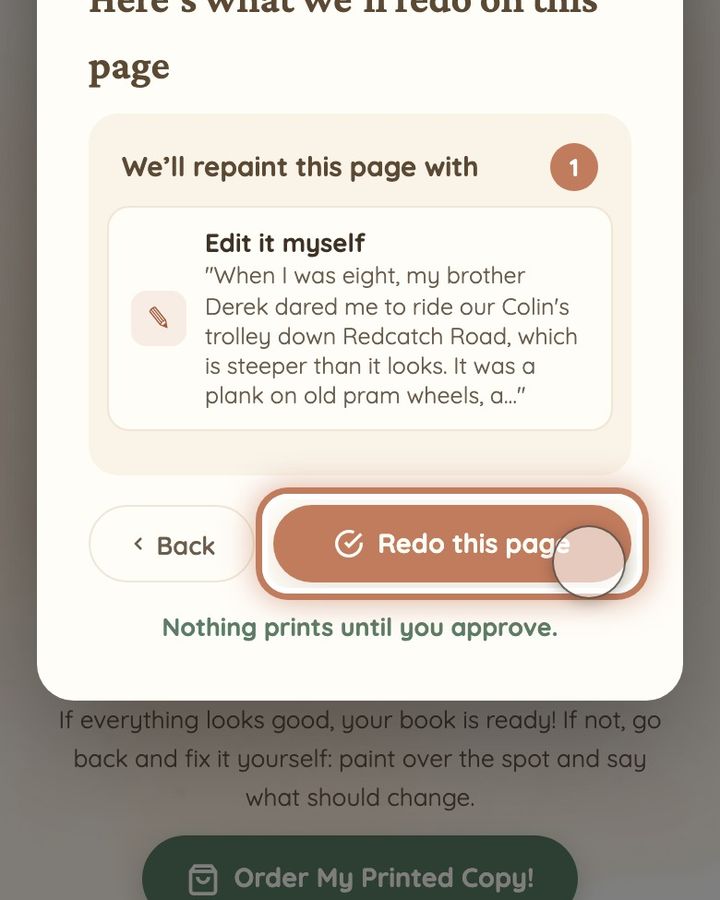
10 seconds · no sound
- Tap or click “Edit this page!”, then “The words”.
- Change the words in the box.
- Tap or click “Save & continue”, then “I’m done: review my redo”.
- Tap or click “Redo this page”. This only saves your words.
On a page with only words, the button is called “Edit text!”.
This doesn't use any of your image fixes.
If your change still does not save after you reload the page, or a saved change is gone after a reload, write to us at hello@memolio.io and tell us the page number. If the same mistake is on many pages, change it on each page in turn: changing the words is free. If a wrong answer in the form shaped whole pages, or you want to ask for the book to be made again, use “Something seriously wrong that page fixes can't solve?” at the top of your book, or write to us.
Still stuck? Write to us at hello@memolio.io and tell us what you were trying to do.