Changing something on a page
How do I change something on a page?
Every picture has a button in its top right corner that says “Edit this page!”. A page with only words has “Edit text!” instead, and a page with one of your own photos has “Change this memory” at the bottom right. The button opens a window with the picture. Paint over the part you want changed, and the choices appear next to it: “Characters” for a person's face, age, hair or clothes, “Fix this” for a hand or anything that looks broken, “Remove this” to take something out, and “Change this” to turn something into something else. To change the place, the mood or the style of the whole picture, choose “Repaint the whole page” instead. To change only the words, choose “The words”. You can fix several spots on one page in one go, and together they use just one of your fixes. While a page is being repainted, you can work on other pages, but not on that one. Nothing prints until you approve.
Steps
- Go to the page you want to change. On a computer or tablet the book shows two pages side by side, and each page has its own button.
- Tap or click “Edit this page!” in the top right corner of the picture.
- Paint over the part that is wrong, with your finger or the mouse. The choices only appear after you have painted. The colour only marks the spot and does not appear in your picture. Painted too much? Tap or click “↶ Undo”.
- Choose what should happen to the spot and answer the short question that appears. To fix another spot on the same page, tap or click “+ Add another fix to this repaint” and paint over the next one. Each spot gets its own colour and is listed under “Fixes in this repaint”.
- Tap or click “Fix the painted spots →” at the bottom of the window. If you chose to repaint the whole page, the button says “Repaint this page →”.
Short video: How to mark what you want changed
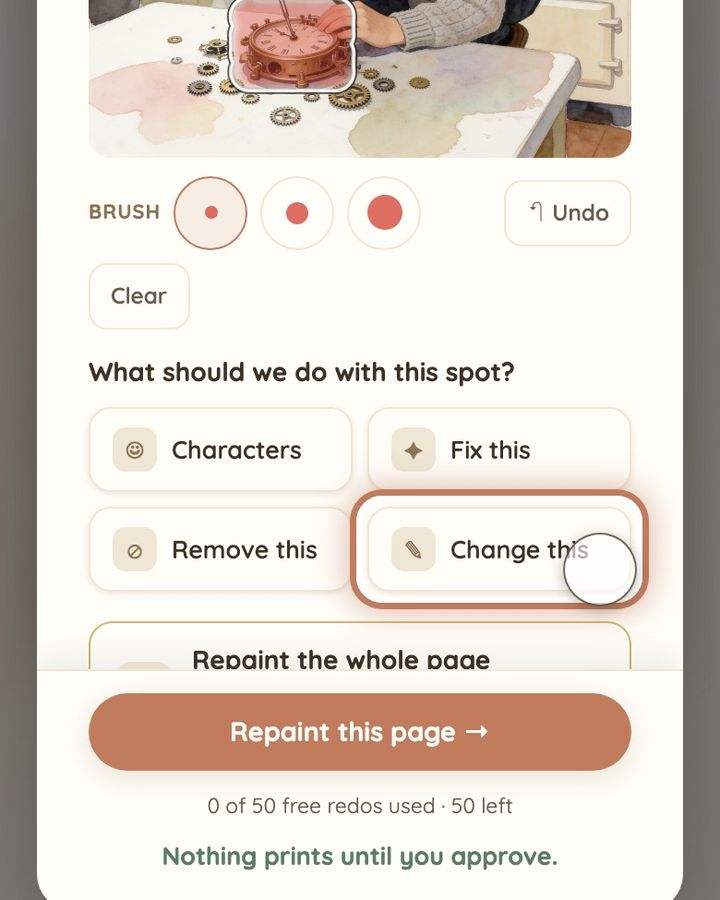
13 seconds · no sound
- Tap or click “Edit this page!”.
- Pick a brush size: small for small things, big for a whole person.
- Paint over the part you want changed.
- The colour only shows our painter where to work. It is not part of your picture.
- Painted too much? Tap or click “↶ Undo” and paint again.
- Now choose what should happen: “Characters”, “Fix this”, “Remove this” or “Change this”.
Short video: Several fixes on one page at once
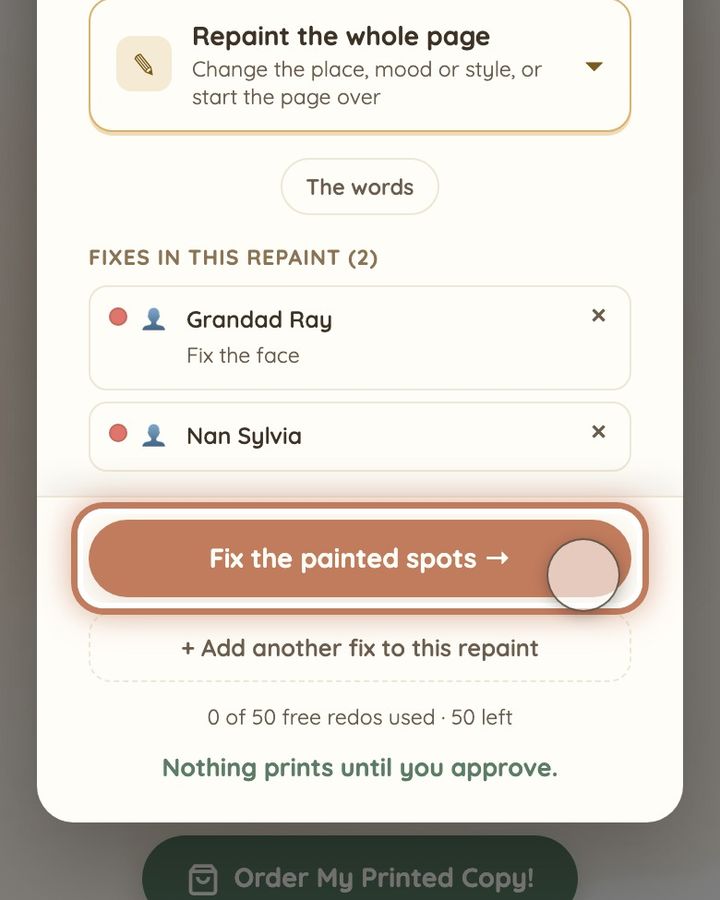
13 seconds · no sound
- Paint the first face and choose the person.
- Tap or click “+ Add another fix to this repaint”.
- Paint the next spot. It gets a new colour.
- Choose what to do with it.
- Both are listed under “Fixes in this repaint”. “Fix the painted spots →” sends both together.
This uses 1 of your image fixes. It costs no money.
If the window does not open, the book may already have been ordered: after ordering, the pages can no longer be changed. If a message shows “This page is already being redone. Hang tight, the new picture is on its way.”, wait until the new picture for that page has arrived. If the window says two changes cannot run in one repaint, send the first one, then add the other as a new fix. If your book is not ordered and the window still does not open after you reload the page, write to us at hello@memolio.io and tell us the page number.
Still stuck? Write to us at hello@memolio.io and tell us what you were trying to do.